Metadata Removal: Protect Location Data in Photos
If you’re a creator, “privacy” is not just about your face. It’s also about the invisible data attached to your photos. . . That invisible layer is metadata,...
If you’re a creator, “privacy” is not just about your face. It’s also about the invisible data attached to your photos.
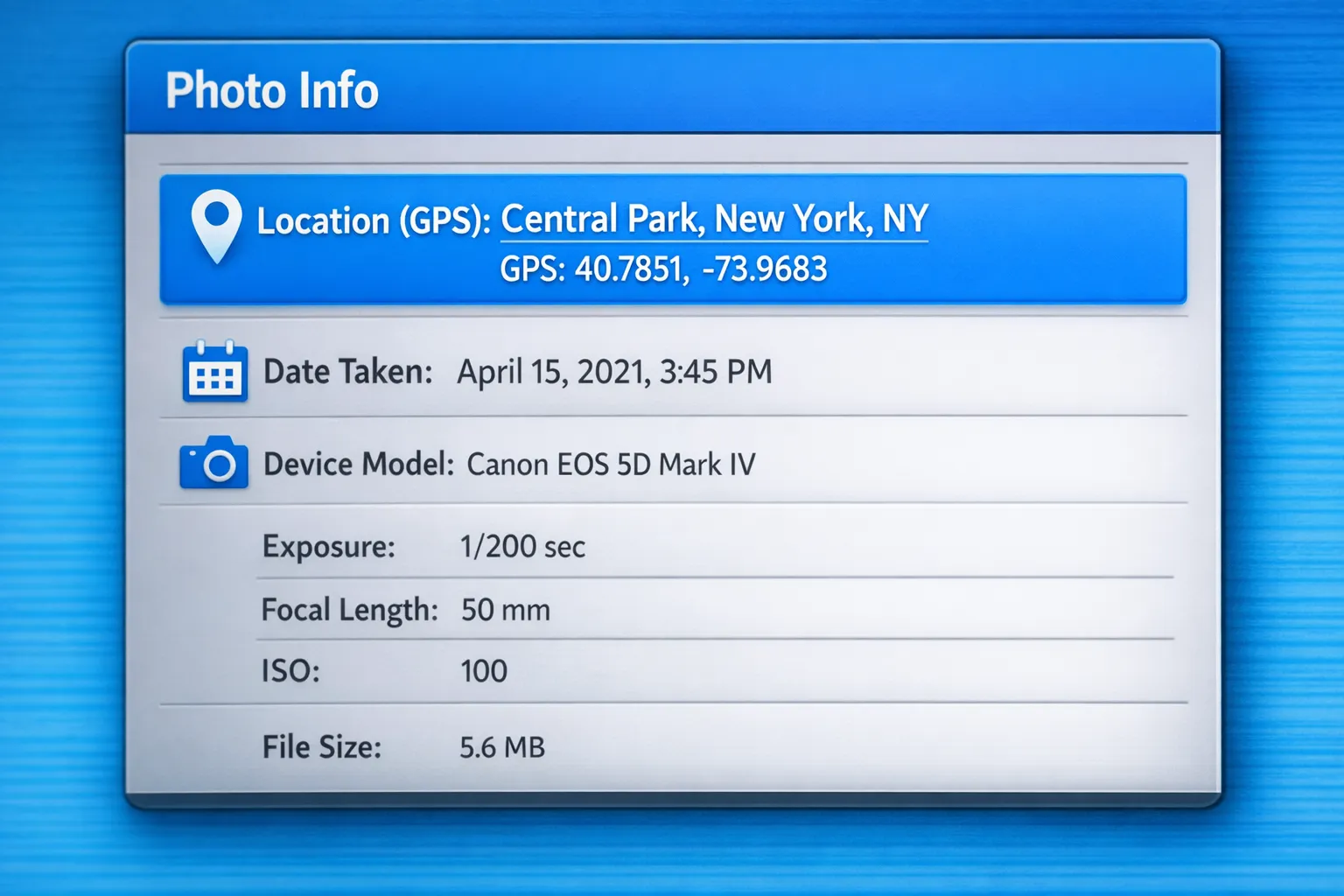
That invisible layer is metadata, and it can include GPS location, the time a photo was taken, and even the device model. If you’ve ever posted from a hotel, your apartment, or a recognizable neighborhood, metadata can turn a harmless selfie into a breadcrumb trail.
This guide shows you how to do metadata removal (especially GPS data) on the devices creators actually use, plus a simple workflow so you don’t have to stress every time you upload.
What metadata is (and why it’s risky for creators)
Most photos you take on a phone contain EXIF data (Exchangeable Image File Format). EXIF can store:
- GPS coordinates (latitude and longitude)
- City-level location names (sometimes derived by apps)
- Date and time
- Camera model and settings
EXIF itself is normal. The problem is context: when you’re an OnlyFans creator, location hints can be used for doxxing, harassment, or “I saw you in…” messages that instantly kill your peace.
If you want a deeper definition of EXIF and what it can include, see the EXIF overview on Wikipedia.
Important: platforms and apps behave differently
Some websites strip metadata on upload, some don’t, and some strip parts of it but keep other fields. Apps also change behavior over time.
So the safest mindset is:
Assume your original file still contains GPS data unless you remove it yourself.
Fast self-check: does your photo contain location data?
Before you change anything, test one recent photo.
On iPhone (Photos app)
Open the photo, tap the info icon (i) (or swipe up). If you see a map or a location name, that image has location data.
On Android (Gallery/Google Photos)
Open the photo, look for Details or an info icon. If you see a map pin, coordinates, or a location name, it’s tagged.
On Windows
Right click the file, click Properties, then Details. Look for GPS-related fields.
On Mac
In the Photos app, open the photo and look for location info in the info panel. If you see a place name or map, it’s tagged.
Metadata removal on iPhone (best options)
There are two parts to iPhone safety:
- Stop adding GPS to new photos.
- Strip GPS from photos you already took.
Option A: Turn off location tagging for the Camera
On iPhone, location is controlled by Location Services.
- Go to Settings → Privacy & Security → Location Services
- Find Camera
- Set to Never (or disable Precise Location where applicable)
Apple’s official docs on Location Services are here: Apple Support: Location Services (policies and menus can change with iOS updates).
Option B: Remove location before sharing (the “Share Sheet” method)
When you share a photo from the Photos app, iOS can let you exclude location.
- Tap Share
- Tap Options at the top of the share screen
- Turn off Location (wording may vary by iOS version)
This is great if you post from your phone and you want a quick, repeatable habit.
Option C: Remove location from an existing photo (edit location)
If a photo already has location data, you can remove it inside Photos by changing or hiding its location (exact steps vary by iOS version). If you cannot find a “remove” option directly, use Option B when sharing, or export through a workflow that strips metadata.
Metadata removal on Android (creator-safe settings)
Android devices vary, but most camera apps have a simple toggle.
Step 1: Disable “Location tags” (or similar) in the camera
Open your Camera app settings and look for:
- Location tags
- Geotagging
- Save location
Turn it off.
Step 2: Remove location from existing photos
Many gallery apps show photo details and may offer a way to edit or remove location. If your gallery app does not provide a removal option, use a dedicated metadata-removal step before uploading (see the desktop and advanced options below).
Metadata removal on Windows (built-in, no extra tools)
Windows has a surprisingly useful feature for this.
- Right click the image file
- Click Properties
- Go to the Details tab
- Click Remove Properties and Personal Information
- Choose Create a copy with all possible properties removed
This creates a cleaner version you can upload, while keeping your original untouched.
Microsoft’s general guidance on file properties can be found in their Windows help resources, but the exact wording can vary by Windows version.
Metadata removal on Mac (Photos app is usually the easiest)
If you import photos into the macOS Photos app, you can manage location data there.
In Photos:
- Open the image
- Open the info panel
- Use the location controls to remove or hide the location (menu labels vary by macOS version)
If you prefer not to use Photos, consider an export workflow that strips metadata (next section).
The creator workflow that prevents mistakes (recommended)
Most privacy mistakes happen when you are tired, rushing, or posting from bed. The fix is a workflow that makes the safe option the default.
Here’s a simple “creator-safe” pipeline you can reuse.
| Step | What you’re protecting | What to do | Output |
|---|---|---|---|
| Capture | GPS + time patterns | Turn off camera location tagging | Clean originals going forward |
| Select | Oversharing context | Avoid identifiable backgrounds and landmarks | Lower doxxing risk |
| Export | Hidden EXIF fields | Export a posting copy (not your original) | “Upload-ready” files |
| Strip metadata | GPS data in photos | Remove location and extra properties | Sanitized files |
| Upload | Platform uncertainties | Upload the sanitized version only | Less accidental leakage |
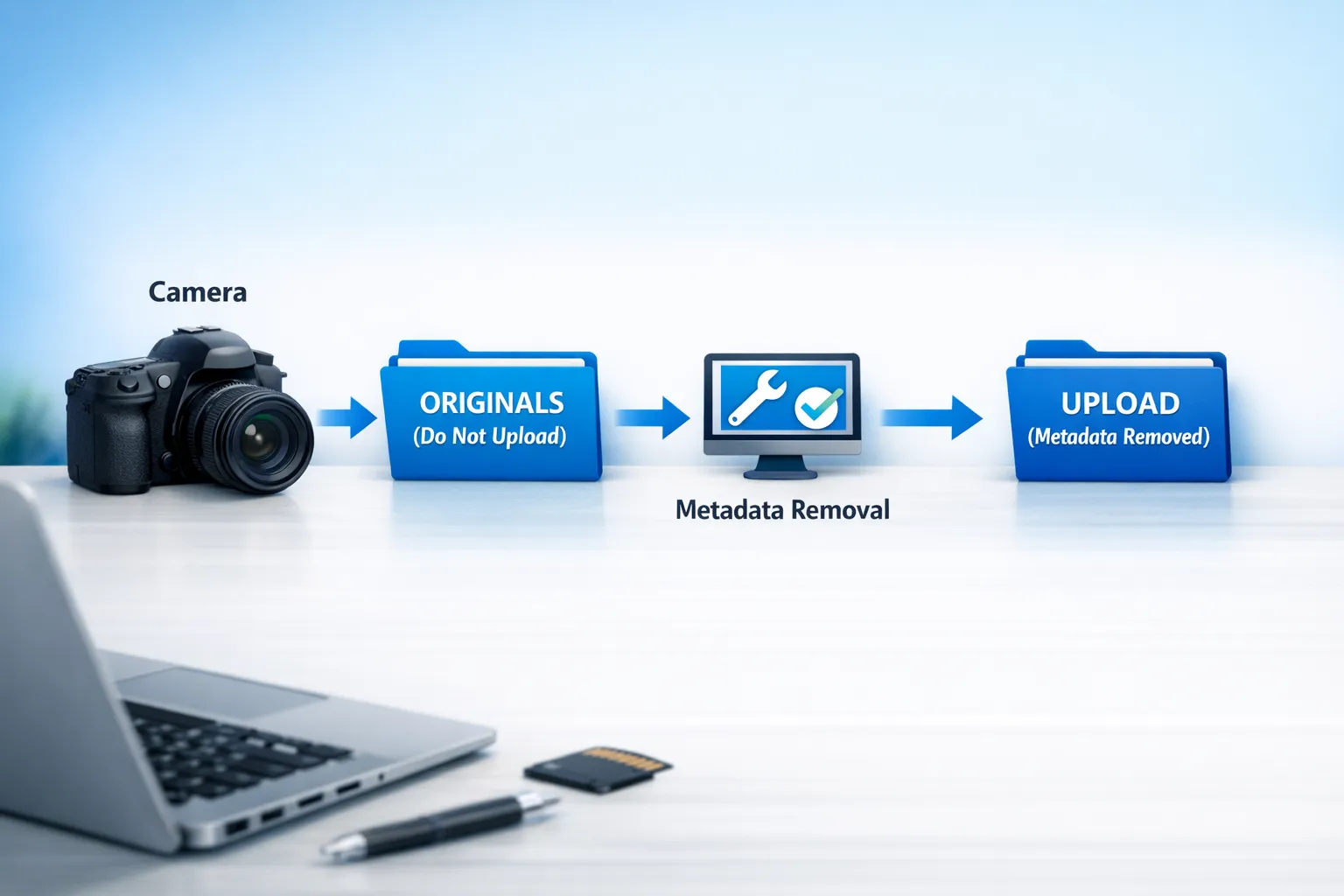
“Two-folder rule” (tiny habit, huge payoff)
Create two folders:
- ORIGINALS (Do Not Upload)
- UPLOAD (Metadata Removed)
Only upload from the second folder. This one habit prevents the classic mistake of posting the wrong file.
Advanced option (power users): ExifTool
If you want maximum control, many professionals use ExifTool, a widely used command-line tool for reading and removing metadata.
Official site: ExifTool by Phil Harvey
Typical approach includes creating a copy and stripping metadata (commands vary based on your OS and your exact goal). If you use tools like this, test on a single file first and confirm the output no longer contains GPS fields.
If that sounds too technical, that’s okay. Built-in iPhone share options and Windows removal get you most of the safety benefits without extra tools.
Common creator mistakes (and how to avoid them)
Mistake 1: “I posted on a big platform, they must strip EXIF”
Some platforms remove metadata, some partially remove it, and behavior can change. The safer move is to strip it yourself.
Mistake 2: Sending originals to editors, chatters, or collaborators
Even if you trust them, more copies equals more risk.
If you outsource anything, make it standard that you only share metadata-removed versions.
Mistake 3: Location patterns, not just location tags
Even without GPS, your audience can still piece together patterns.
Examples:
- Always posting at the same local time
- A consistent window view, street sign, or gym background
- Repeated “I’m at…” captions
Metadata removal is crucial, but it works best as part of a broader privacy system.
If staying anonymous is a priority for you, you’ll also like:
- How to Secretly Promote Your OnlyFans (Without Friends or Family Finding Out)
- How to Make Money on OnlyFans Without Showing Your Face & Stay Anonymous
Quick checklist: metadata removal before you post
Use this 60-second checklist before uploading content.
- Camera location tagging is OFF
- You exported an “upload copy” (not the original)
- You removed location data (GPS) from the upload copy
- You checked one file to confirm the map/location info is gone
- Your background does not reveal street names, mail, licenses, or unique landmarks
If you work with an agency: what to ask about privacy
A legitimate OnlyFans management agency should treat privacy like operations, not like a vibe.
Ask:
- “Do you have a standard process for metadata removal before posting?”
- “Who has access to my original files?”
- “Do you help with country blocking and account security setup?”
- “What do you do if my content gets leaked?”
If you’re currently vetting help, also read:
Frequently Asked Questions
Does removing metadata reduce photo quality? Usually no. Metadata removal deletes hidden fields, not the image pixels. Some export methods can compress files if you choose a lower quality setting, so double-check export settings.
If I screenshot a photo, does that remove metadata? Often screenshots contain less original EXIF data than the original photo, but it’s not a reliable privacy strategy. Some apps still add their own metadata, and screenshots can reduce quality.
Will OnlyFans remove EXIF data automatically? Platforms can change how they process uploads, and different upload methods can behave differently. For privacy, it’s safest to do metadata removal yourself before uploading.
What other data can reveal my location besides EXIF? Background details (street signs, mail, unique interiors), routine posting times, reflections (mirrors, windows), and even the same recognizable local brands can narrow you down.
I’m faceless, do I still need metadata removal? Yes. Faceless creators often rely on privacy more than anyone. Metadata removal is one of the easiest, highest-impact safety steps you can take.
Want a privacy-first setup that still grows?
Metadata removal is one of those “small” steps that can prevent a huge situation. If you want help building a full privacy system (country blocking, security setup) plus growth systems (multi-platform marketing, posting strategy, 24/7 fan chatting), Lookstars can help.
Learn more about how we work as an OnlyFans management agency or apply here: Lookstars Agency application.



Ready to transform your career?
Join hundreds of creators already earning six figures with Lookstars Agency.
Share this article
Best OnlyFans Agency
Europe's Leading OnlyFans Management Agency.

100% Free Ebook
Get our guide and unlock the secrets to OnlyFans success.
100% Free Ebook
Get our guide and unlock the secrets to OnlyFans success.
Free Revenue Calculator & Profile Analyzer
Try them for freeContinue reading...

Am I Attractive Enough for an OnlyFans Agency? The Answer

Can You Ever Fully Delete Your OnlyFans Content? The Reality